
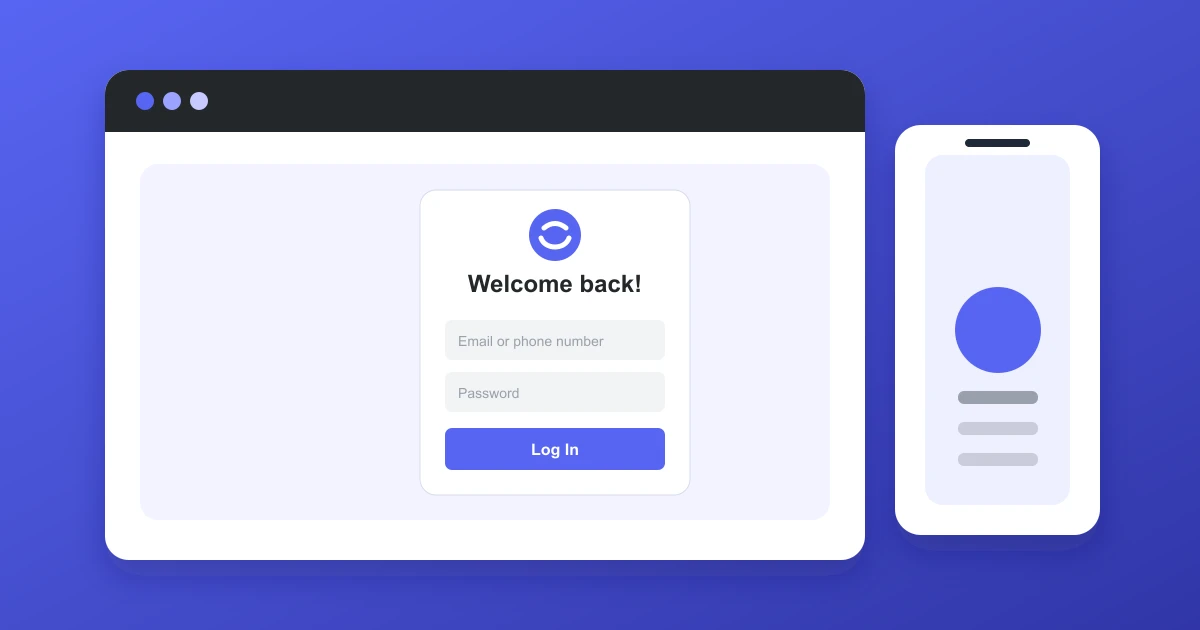
Discord can be used in a supported desktop or mobile browser without installing its desktop app. The sign in process is similar on both devices, though the layout and QR login menu may differ.
Quick answer
Open the official Discord website, select Login, enter the email or phone number linked to your account, enter your password, and complete two factor or email verification if prompted.
How to log in to Discord in a desktop browser
- Open a current browser and go to the official Discord website.
- Select Login in the page header or sign in panel.
- Enter the email address or phone number linked to the account.
- Enter your password. Confirm that caps lock and the keyboard layout are correct.
- Select Login.
- Complete an authenticator, backup code, recovery method, or email verification prompt if required.
After sign in, keep the browser session only on devices you control. Select Log Out before leaving a shared or borrowed computer.
How to log in in a mobile browser
- Open Safari, Chrome, Firefox, or another supported browser.
- Visit the official Discord website.
- Select Login.
- Enter the account email or phone number and password.
- Complete any verification request.
- Choose the browser session or open Discord in the app if that option appears.
Some mobile browsers show fewer controls on the first visit. Rotate the device or use the mobile app when a server interface is difficult to manage in the browser.
How to use QR code login
- Open Discord Login in the desktop browser and select the QR login option.
- Open Discord on a phone that is already signed in.
- Find the QR scanner in the app or User Settings menu.
- Scan the code shown in the browser.
- Review the device request and approve it if you started the login.
Do not scan unexpected QR codes sent by strangers. Refresh the browser page for a new code if the current code expires.
Browser session and account security
Enable two factor authentication
Open User Settings and enable two factor authentication. Store backup codes in a password manager or another secure offline location. Losing both password access and verification methods makes account recovery harder.
Review authorized sessions
Check the sessions or devices area in User Settings. Remove unfamiliar devices and sign out of sessions you no longer use.
Use shared devices carefully
Use private browsing when allowed, reject password saving prompts, and log out at the end of the session. Clearing browser data can affect unrelated saved information, so review the browser settings before deleting site data.
Discord browser login troubleshooting
The page returns to login
Allow cookies for discord.com, close duplicate Discord tabs, disable strict privacy blocking for the site, and refresh the page. Browser extensions that block scripts or cookies can interrupt sign in.
The password is rejected
Confirm the correct account name and keyboard layout. Use password reset if your saved password is not accepted. Avoid repeated attempts while the account is locked or verifying a device.
The verification code fails
Check that the phone clock uses automatic time, then enter the current authenticator code. A backup code can be used if the authenticator becomes unavailable.
The QR code expires
Refresh the browser and create a new QR code. Older codes cannot be reused after they expire or after the browser session changes.
The login page is blank
Update the browser, clear discord.com site cookies, try a private window, and disable conflicting extensions temporarily. Also test another network if loading repeatedly fails.
Common questions
Can I stay logged in after closing a browser?
Yes, when the browser retains its Discord session cookies. Shared computers should always be signed out manually.
Do I need the desktop app?
No. Browser login provides web access without installing Discord locally. The app may provide better performance for some features.
Can anyone approve my QR login?
No. Only someone signed in on a device authorized by your account should approve a QR request. Reject anything you did not initiate.
Why was a verification email sent?
Discord may ask for verification when a sign in uses an unfamiliar device, browser, location, or network. Follow the official account email link and review the device request first.
Bottom line
Simple takeaway
Visit the official Discord website, enter account details, and complete verification to sign in on desktop or mobile browsers. Keep sessions secure, review unfamiliar devices, and refresh cookies or QR codes when sign in stops working.