
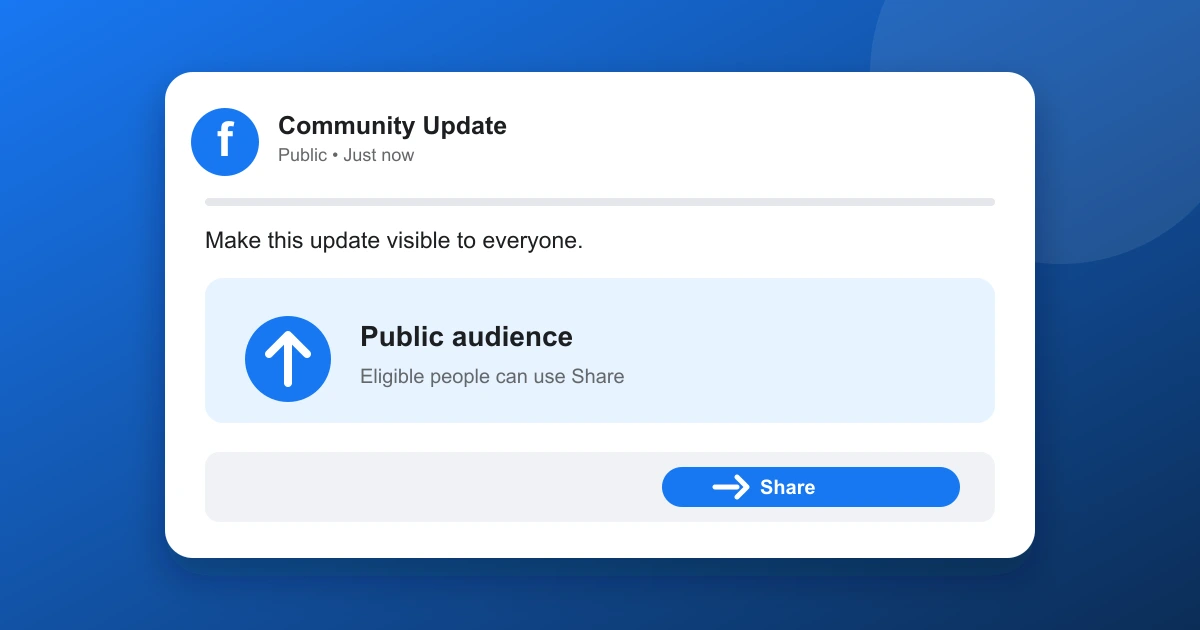
A Facebook post becomes shareable when its audience and account privacy settings allow people outside your direct circle to repost it. The most important step is usually changing the post audience to Public.
Quick answer
Open your post, select the audience icon, choose Public, and save the change. A public audience lets eligible people see the Share button. Review your profile sharing settings too, because Facebook may limit sharing based on account and content privacy.
How to make a Facebook post shareable
Public posts can appear beyond your friends and followers, depending on search, group, page, and content settings. A post set to Friends, Friends except..., or a custom audience is restricted to that selected group. Posts inside private groups can also remain limited by group rules.
- Find the post on your Facebook profile or Page.
- Tap or click the audience icon below your name.
- Select Public.
- Save the audience change.
- Reload the post and check whether the Share button appears for people who can view it.
How to make a Facebook post shareable on desktop
- Open Facebook and find the post you want others to share.
- Select the audience icon beside the date or under your name.
- Choose Public instead of Friends or a custom list.
- Confirm the change.
- Open the post in another browser or ask someone outside your friends list to confirm its visibility.
Page posts may have different controls than personal posts. Ads and promoted posts can follow separate visibility and sharing rules, so check the Page post controls before publishing.
How to make a Facebook post shareable on mobile
- Open the Facebook app and go to your profile, Page, or Feed.
- Find the post and tap its three-dot menu.
- Select Edit audience or Edit privacy, if available.
- Choose Public and save.
- Review the post again in the app to confirm the updated audience.
Menu labels can differ on iOS, Android, the mobile website, and older app versions. If an Edit audience option is missing, open the post directly and check the audience icon shown beside the timestamp.
How to change an existing post
Most existing profile posts can be changed individually. Open the post, choose the three-dot menu, and look for Edit audience, Edit privacy, or similar options. Changing the audience to Public can allow eligible viewers to share it.
Public visibility is not permission to share copyrighted images, private information, or someone else's personal content. Review the media and details inside the post before widening the audience.
How profile sharing settings affect posts
Account-level privacy controls can affect who can share your content. Open Settings and Privacy, then find Privacy, Audience and Visibility, Followers and Public Content, and sharing controls. Menu names vary between Facebook clients.
- Allow followers where appropriate.
- Check who can see posts you publish.
- Review public post commenting and reaction settings.
- Confirm that public profile photos and cover photos do not have unexpected restrictions.
Changing a profile setting does not always rewrite every past post. Individual audience controls remain the final check.
Why the Share button may be missing
- Restricted audience: The post is set to Friends, a custom group, or a private audience.
- Private group: Group privacy and posting rules can prevent reposting outside the group.
- Account controls: The profile or Page has limits that affect public sharing.
- Post type: Some videos, live videos, polls, events, ads, and tagged content use different controls.
- Temporary restrictions: Facebook may limit an account or post after a policy review or security check.
- App differences: The mobile or desktop interface may hide the button while showing other share actions.
If the Facebook Share option remains missing after the audience is set to Public, view the post from another account and refresh the app. Interface availability can vary by region, content format, and account status.
Facebook sharing privacy checklist
Before making a post public, check the text, photos, location tag, faces, confidential details, and linked Page or group. People you trust may share content without considering where it can travel next.
- Remove addresses, phone numbers, documents, and private conversation excerpts.
- Confirm everyone shown in a photo agrees to wider distribution.
- Review any location tag that reveals a routine or current address.
- Verify the audience icon before publishing, not only after posting.
- Recheck old posts when a privacy need changes.
Common questions
Can friends share a friends-only Facebook post?
No. A friends-only audience usually keeps the post inside that selected circle. The creator should change the individual post audience to Public before friends outside that group are expected to repost it.
Can you make all Facebook posts public at once?
Facebook has privacy and past-post review tools, but bulk behavior can vary. Individual post controls remain useful when a single photo, update, video, or status needs public sharing.
Does making a post shareable notify everyone who saw it?
Changing audience privacy does not normally send a detailed sharing notice to everyone who viewed the earlier version. A wider audience can see the post afterward according to the new setting.
Why can someone not share a public post?
The post type, account status, Page settings, temporary privacy change, content restriction, or device interface may affect the button. Confirm the post audience and test it from another account.
Bottom line
Simple takeaway
Use the audience control on each post and select Public. Then review the profile or Page privacy controls. These settings determine whether eligible viewers can find and share the content.
Public sharing is useful for announcements, community updates, and public information. Keep sensitive or personal posts limited, and check every audience icon before publishing.