
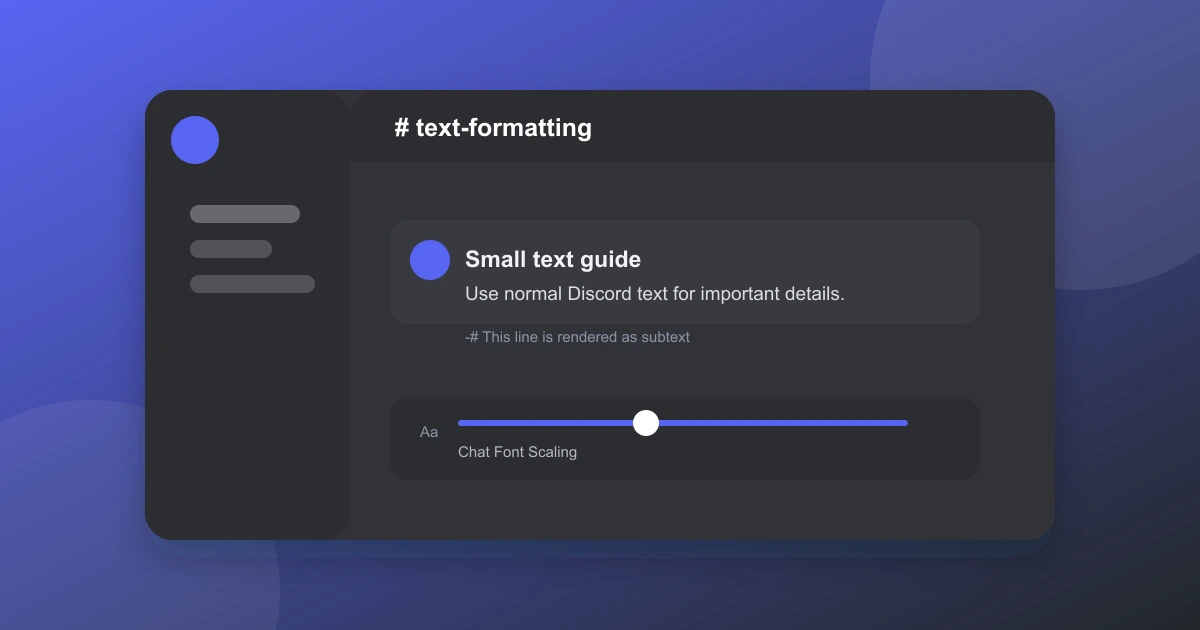
Discord offers two ways to control small text. Subtext Markdown makes one message line smaller than the surrounding text. Chat Font Scaling changes the size of the Discord interface and messages for your account.
Quick answer
To make a separate Discord line look small, type -#, add a space, and then type the message. For example, -# This text is smaller. Send the message and Discord will format it as subtext.
How to make small text with Discord subtext
- Open a Discord server channel or direct message.
- Start a new line with -#.
- Add a space after the symbols.
- Enter the words you want to make small.
- Send the message.
The formatted message should look like this:
-# This is a small line in Discord.
The hyphen, hash, and space are important. Placing them at the start of the line tells Discord to use the subtext style.
How to change Discord text size on desktop
Open User Settings, select Accessibility, and find Chat Font Scaling. Move the slider to adjust the general size of chat messages. The setting affects your view only, not the size seen by other members.
- Open Discord and select the user settings gear.
- Choose Accessibility.
- Adjust Chat Font Scaling.
- Keep the setting readable, especially in long conversations.
In some Discord client layouts, the same controls can be reached through Appearance. The exact menu label may change with an app update.
How to change Discord text size on mobile
Discord mobile uses appearance settings and display options instead of a standalone desktop accessibility slider in many versions. Tap your profile icon, open Appearance or Accessibility, and adjust the available chat font scaling or display size setting.
Small text sent with -# will use Discord's subtext style, then scale relative to the recipient's own chat display settings.
How to make several lines small
Place -# on each separate line you want Discord to format as subtext. Without the Markdown on each line, the next line will use normal message size.
-# Small line one
-# Small line two
This method is useful for side notes, short citations, spoiler context, or closing details below a normal message.
Why Discord subtext is not working
- Check the spacing: Use a space after -#.
- Check the line: Place the Markdown at the beginning of a line.
- Update Discord: Older apps may not render newer Markdown styles.
- Check for characters: Replace a fancy dash or Unicode hash copied from another editor with a plain hyphen and hash.
- Review formatting conflicts: A code block, bot embed, or another wrapper can prevent normal Markdown from rendering.
Other useful Discord text sizes
- Large headings: Start a line with # and a space.
- Medium headings: Start a line with ## and a space.
- Small headings: Start a line with ### and a space.
- Subtext: Start a line with -# and a space.
- Bold text: Wrap text with double asterisks.
- Italic text: Wrap text with single asterisks or underscores.
Markdown creates a visual format inside a message, while the font scaling setting controls your personal display. Both can be combined, so check that the subtext remains readable before using it for important information.
Common questions
Can Discord make one word small?
The easiest method is to create a separate subtext line. Discord's Markdown is line based for small text, so it works most predictably when -# starts a complete message line.
Does small text change for other people?
No. Other users control their own Discord font scaling. Discord subtext will still be smaller than normal text for recipients, subject to their display settings and client.
Can servers disable Discord Markdown?
Server permissions can restrict bot behavior and message actions, but user subtext Markdown is generally handled by Discord's message renderer.
Can you make text tiny with Unicode fonts?
Unicode can imitate tiny or small text, but it is not the same as Discord formatting. Those characters can reduce accessibility, searchability, and readability, so supported Markdown is the safer choice.
Bottom line
Simple takeaway
Use -# Your text for a single small line in Discord. Use Chat Font Scaling or Appearance settings if you want to resize the overall chat text on your device.
Keep subtext reserved for optional details or brief notes. Important instructions, links, and requests should remain in normal text so every Discord client can display them clearly.
Browse our AI tools directory for more tools that support writing and online communication.